Let’s make a Robot Quest!
So you want to make a LunosTM robot quest? This doc will set ya on the right path.
-
Place a bot in the level where you want them.
- They have the prefix “Robot_TypeOfBot” and live under Lunos/Robot. We could probably throw them in a collection
- You can think of this actor as the body of the bot - bodies are swappable and can be customized later.
-
Create a new RQ (Robot Quest)
- RQs live under Lunos/Robot/RobotQuests and have the prefix “RQ_WorldName_BotNameOrQuestName”.
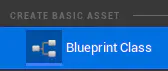
- Right click in the content browser and “Create new Blueprint Class”
- RQs rely on inheritance IE one can be based on another. For example, there is an RQ named “RQ_NeedItem” that bots like Mido are based off. If you are designing a quest that is based off something that already exists, be sure to select the appropriate parent in the “Pick Parent Class” dialog
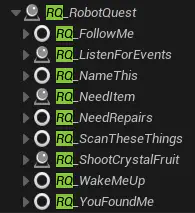
- Don’t worry if your quest idea isn’t listed / implemented - we can set up / reparent later (IE parent off of the RQ_RobotQuest directly)
- You can think of the RQ as the brain / function of the bot. The RQ holds a bunch of data and works as the central processor for the quest system
-
Place the RQ you made into the level
- Placement doesn’t matter, but try to keep it close to the bot
- Make sure it lives in the same sublevel as the bot!
-
Lnk the RQ you placed in level with the bot
- Select the RQ (orb thing) and use the eyedropper or dropdown to assign “Robot pawn”

- Select the RQ (orb thing) and use the eyedropper or dropdown to assign “Robot pawn”
-
Create a new BT (Behavior Tree) in the same folder as the new RQ by duplicating any existing BT
- No inheritance here, just good old fashioned copying a template
- You can alt drag from the content browser to make a copy and rename after
- BT_NameOfQuestOrBot
-
Assign values in RQ class
- Double click the RQ you made to open the BP editor
- Edit the default values on the right:
- Tag should be a simplified id for the character, either their name if it has stuck (like Mido) or a quest description (SummerStuckBot)
- Be sure to fill out Friendly name and subtitle
- Set the BT you made into the Behavior Tree slot
- This BP is also where any quest logic lives (IE how do we know when the quest is satisfied?)
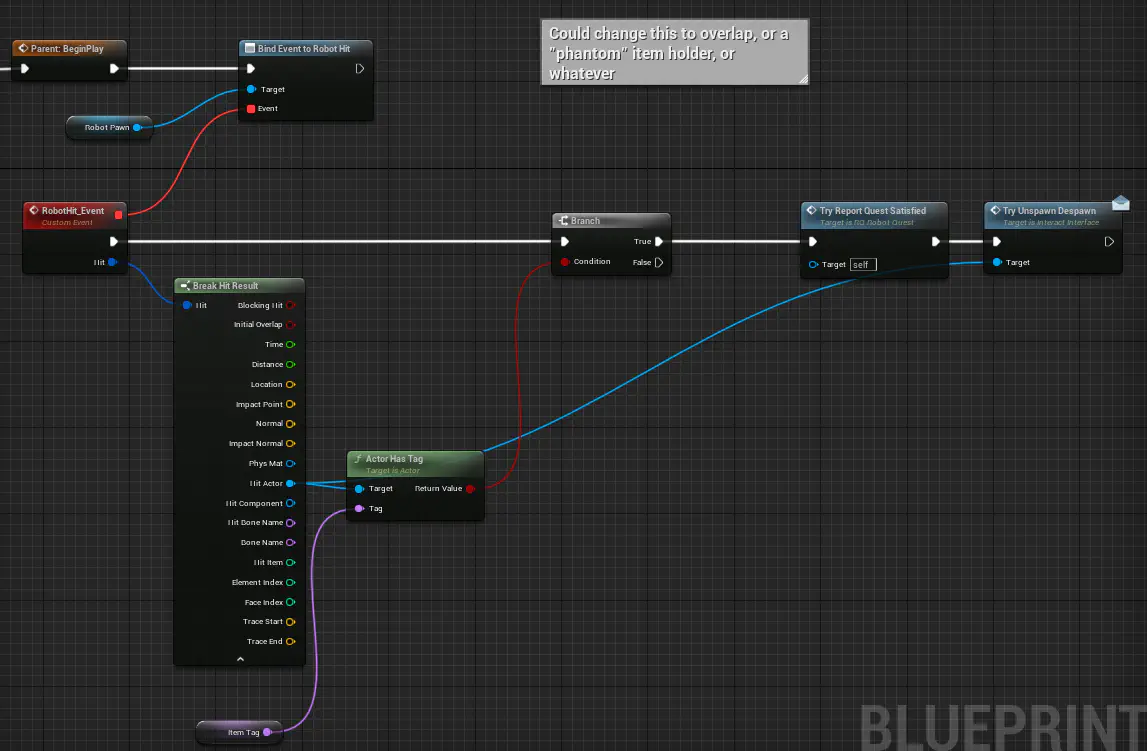
- “TryReportQuestSatisfied” is the actual End point. This code fires off when the bot is hit and checks if it has a specified item tag. If it does, it reports “quest satisfied”.
- Don’t worry if you don’t wanna actually code the quest in yet - the bots will work with no code added
-
Fill out the BT with your dialogue / dialogue logic
- You’ll probably want to start with “first chat”
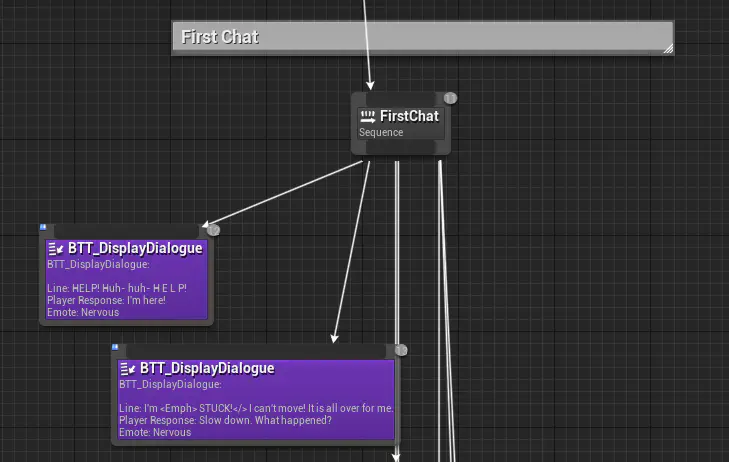
- Select the existing “BTT_DisplayDialogue” nodes and fill out Line, player line, and emote
- You can copy these around / delete
- Make sure they are in left to right order - this determines the order, not height
- “Post Intro” is after you have chatted with them before
- I have not yet implemented variations, but you can make unconnected nodes for me to attach once I do
- Quest satisfied has 2 trees - one for if you have never chatted with them before one one for if you have. No variations needed here
- Be sure to put a “BTT_GiveItem” node somewhere in here so the bot gives up the goodies! By default, these will give level specific data, you should have to change anything
- Additionally, make sure there is a “BTT_ReportQuestComplete” node as well!
- Post Quest is chatting with them after the quest has been turned in.
- We can add additional logic as needed - for example, retrieving data like how many of something you collected, or saying a different line after a flag has been set.
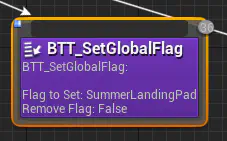
- You can set a global flag with “BTT_SetGlobalFlag” - for example this one sets a flag that calls down the ship in summer.
- BTs auto close their dialog, so no need to add anything to finish a convo.
- You’ll probably want to start with “first chat”
-
Try it out!
- Your bot should now talk!
- Getting the quest to work will be dependent on what you want them to do. Item fetch quests are as easy as inheriting “RQ_NeedItem” and setting an appropriate item tag, but others may be much more complicated