Hey, this documentation is public! DO NOT POST ANY P4 CREDS HERE! Ask me (John!) for your login stuff, then refer back to this page.
- Install P4V if you don’t have it already.
- Make a new folder on your new SSD - name it “Lunos”
- Make a new workspace. (Connection -> new Workspace) Give it a sensible name (lol). Set the workspace root to the new “Lunos” folder you made.
Workspace Mappings
Under workspace mappings, click this lil guy on the right:

This should make an edible text field below. You’re gonna paste this next section in, but first, replace all the “WORKSPACENAME” with whatever name you chose earlier. (ctrl-h is find and replace in docs)
//LunosProject/... //WORKSPACENAME/LunosProject/...
-//LunosProject/Build/... //WORKSPACENAME/LunosProject/Build/...
-//LunosProject/Cooked/... //WORKSPACENAME/LunosProject/Cooked/...
-//LunosProject/DerivedDataCache/... //WORKSPACENAME/LunosProject/DerivedDataCache/...
-//LunosProject/.vs/... //WORKSPACENAME/LunosProject/.vs/...
-//LunosProject/.../EditorRuns/... //WORKSPACENAME/.../EditorRuns/...
-//LunosProject/.../Intermediate/... //WORKSPACENAME/.../Intermediate/...
-//LunosProject/.../Logs/... //WORKSPACENAME/.../Logs/...
-//LunosProject/.../obj/... //WORKSPACENAME/.../obj/...
-//LunosProject/.../Saved/... //WORKSPACENAME/.../Saved/...
-//LunosProject/.../SwarmCache/... //WORKSPACENAME/.../SwarmCache/...
-//LunosProject/.../.blend1 //WORKSPACENAME/.../.blend1
-//LunosProject/.../.csproj.references //WORKSPACENAME/.../.csproj.references
-//LunosProject/.../.log //WORKSPACENAME/.../.log
-//LunosProject/.../.obj //WORKSPACENAME/.../.obj
-//LunosProject/.../.opendb //WORKSPACENAME/.../.opendb
-//LunosProject/.../.opensdf //WORKSPACENAME/.../.opensdf
-//LunosProject/.../.pdb //WORKSPACENAME/.../.pdb
-//LunosProject/.../.sdf //WORKSPACENAME/.../.sdf
-//LunosProject/.../.sln //WORKSPACENAME/.../.sln
-//LunosProject/.../.suo //WORKSPACENAME/.../.suo
-//LunosProject/.../.vcxproj.user //WORKSPACENAME/.../.vcxproj.user
-//LunosProject/.../.vc.db //WORKSPACENAME/.../.vc.db
-//LunosProject/.../Win64-Debug //WORKSPACENAME/.../Win64-Debug
//ArtSource/... //WORKSPACENAME/ArtSource/...
-//ArtSource/.../.autosave/... //WORKSPACENAME/ArtSource/.../.autosave/...
-//ArtSource/.../*.blend1 //WORKSPACENAME/.../*.blend1
Close the new workspace window. You should see a few categories in the depot tab.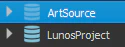
You can right click on one and “get latest revision” - it’s gonna take a while as I’m self hosting the server and it big yo. I suggest starting with the “LunosProject” folder so we can test if UE is working ok.
Once the project folder is downloaded, theoretically you can open the editor (assuming you also have a copy of UE 5.7 installed from the Epic Launcher). You can open “Time.uproject” to open it.