Tutorials of Note
I hand picked short / free tutorials that cover most of basics visually. Definitely give these all a watch at your leasure. There will be important info in them that I may not cover fully. If you have any questions about best practices, just ask me on discord.
https://youtu.be/GAIZkIfXXjQ?si=Ixhp-Tr5rf6b7Ih2 Character animation for impatient people - Blender Tutorial (12:48) by Joey Carlino
https://www.youtube.com/watch?v=X590IZeyT1s Blender - Completely Rigging A Character (5 MINUTES!) (4:28) by Royal Skies
https://www.youtube.com/watch?v=Ygp93IcBhKo Rigging REVERSE-JOINT Characters (FULL PROCESS) (7:00) by Royal Skies
https://www.youtube.com/watch?v=CPEEjlRLKEU Quick Tip: Working With Drivers in Blender (4:25) by Polyfjord
https://www.youtube.com/watch?v=83NVOUKt3-o Control your Blender Rigs like a Pro (7:26) by CG Boost
Below is less of a proper step by step tutorial and more of a collection of tips.
Rigging Tutorial Supplement
Before you start:
In Scene Tab– Make sure Frame Rate (under format) is set to 30 fps.
Starting the rig
To make the armature first set 3d cursor to world origin with ([SHIFT]+S)
([SHIFT]+A) Add > Armature > Single Bone
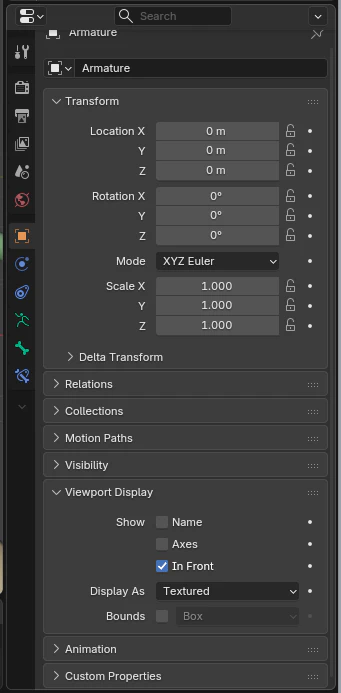
Object Properties Panel > Viewport Display > Check In Front On
Name the Armature something other than default name, this is important for the Unreal import!
Bone Placement tips:
Unreal only really cares about the bone’s Head location for reference. The tail location is good in blender for weight painting and placing bone chains.
Accurate Placement:
Object mode > Select Mesh you want to accurately bone > Edit mode > Select Vert / Loop / Faces you want the bone to sit > ([SHIFT]+S) > Move “Cursor to Selected”
Back to object mode > Select Armature > Edit mode > Select the Head (or tail) of desired bone > ([SHIFT]+S) > Move Selected to Cursor
Name your bones as you go! It will help.
Renaming Bones
F2 = Rename
([CTRL]+F2) = Batch Rename
For bone renaming, Make sure you select “bones” as the object type. Type = Set Name. Method = New. Name should be like [bonename].001 and then that will rename everything correctly. I think you need to make sure that your active selection is what you want .001 to be
Bone Appearances
“Global Change” is under the [Data Object Properties] panel where the “in front” option lives too.
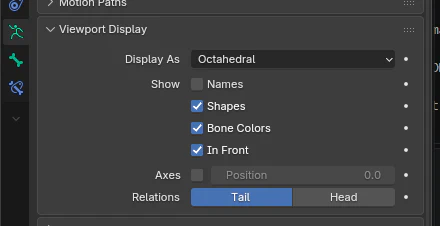
Changing this will update any bones, that are not individually set to something specific, to the newly selected option.
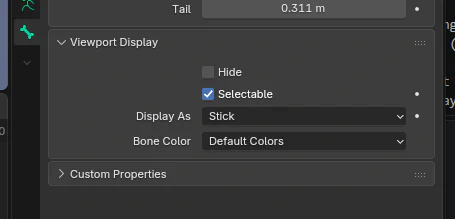
“Individual change” is within Edit Mode > Select a bone > in the [Bone Properties] panel. This is where you can add specific bone colors and shapes!
Adding Weights:
Select Mesh/Object > Then Select Armature > ([CTRL]+P) > Either Empty or Automatic Weights
Congrats - It has now added the Armature modifier to the modifier panel. You can remove the modifier and clear the vertex groups if you want to remove the mesh from your skeleton.
Before we forget! In the Weight Paint mode > Tool Properties turn on Auto-normalize!
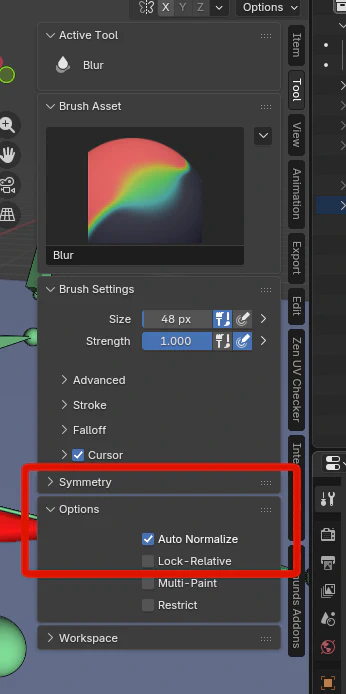
This makes sure that all of the vertex weights will always add up to 1. If you have a vert with less than 1 (because auto-normalize was not turned on), Unreal will make sure to add it’s own best guess of how the vert should be weighted to make it 1. (Unreal will not pick correctly and you will pull your hair out wondering why your anims are messing up)
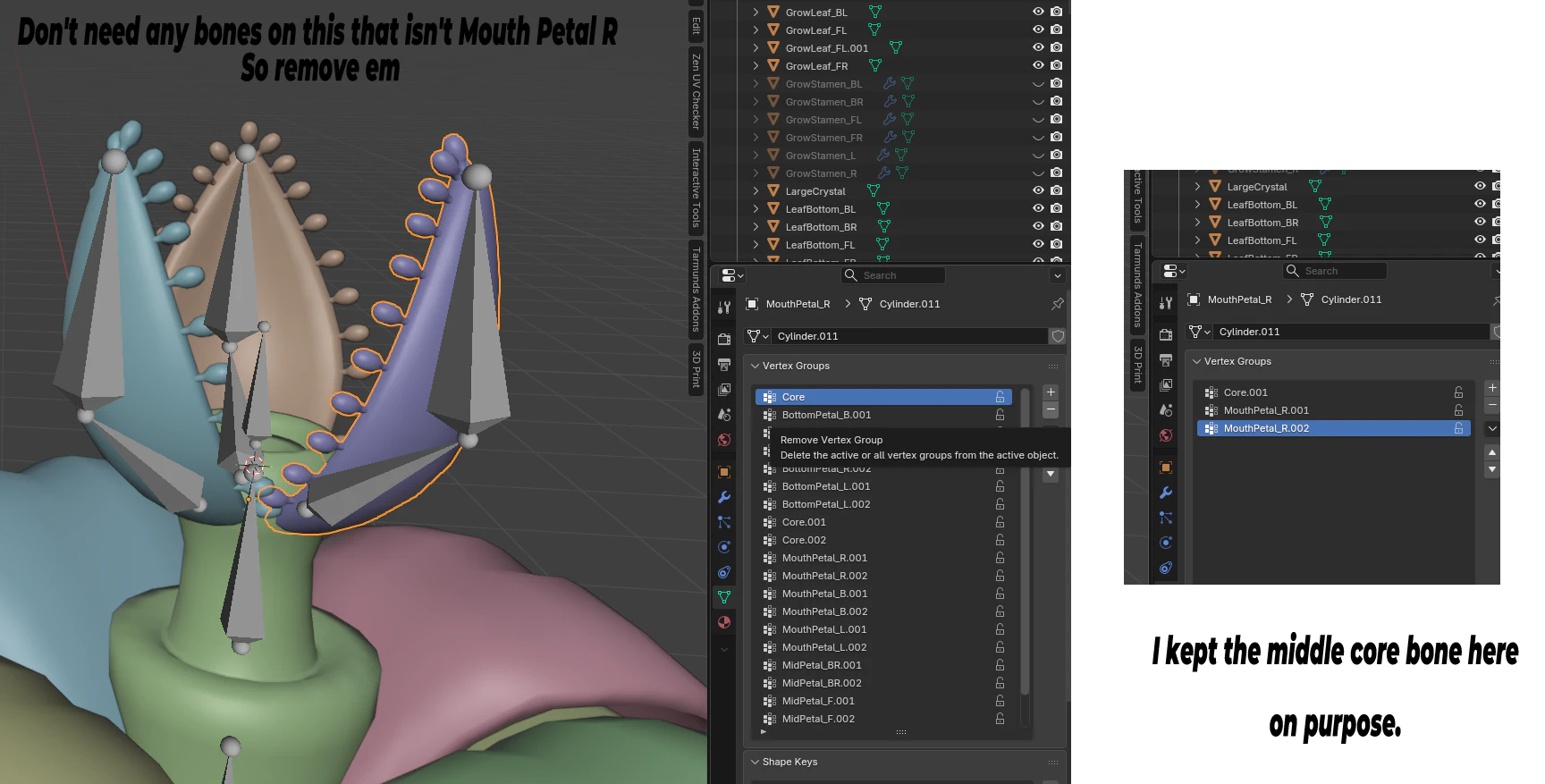
Technically optional, but… on your newly parented Mesh > Go to Data panel > Under Vertex Groups > Remove the bones you DON’T Want affecting this part of the mesh.
Even if you select Empty weights, all the bones will be added the same, so you may want to still cull the unused ones.
What happens when there are a buncha bones that are unrelated to the mesh connected to it? Sometimes Auto-normalize will add .001 weight to random, unrelated, bones! :D The blur weight tool will go from being besties to enemies in no time flat because it keeps assigning the blend weights to random bones.
(I know I told you to turn the auto-normalize feature on, but trust me it’s still better than not having it on!)
Example:
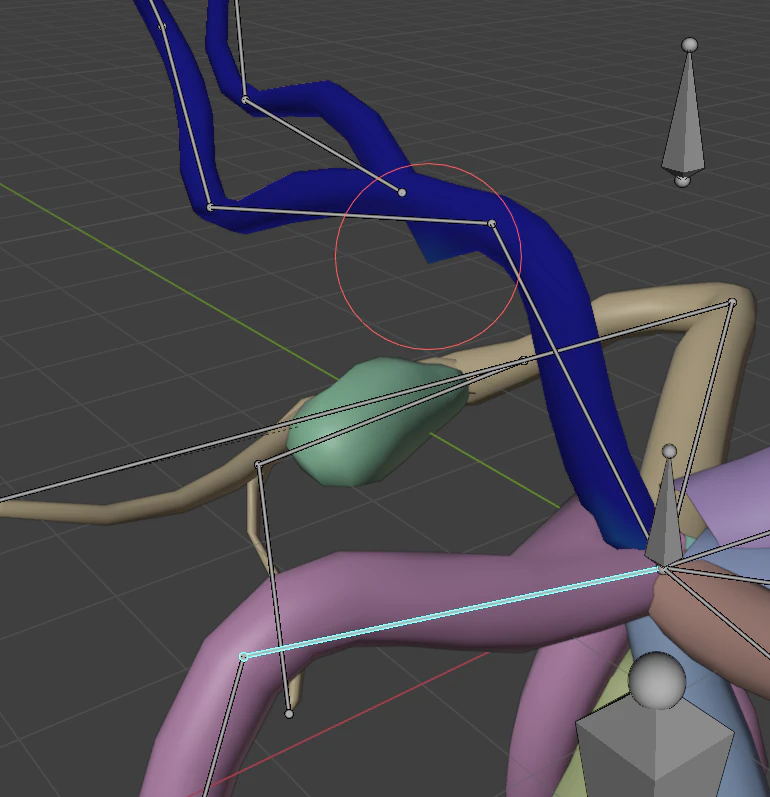
If you move a bone to an extreme in a pose, you may notice vertices pulling towards an unrelated bone. You can weight paint out with 0 or go into the Vertex groups tab and remove any bones that aren’t needed. (See above Vertex Groups tip)
There is not ‘actual’ fill tool for weight painting. Just use the gradient tool. If you start the line off the mesh and drag outwards, it will just flood the whole thing. This does respect face masking, but may gradient weights under the mask. (Mask info below)
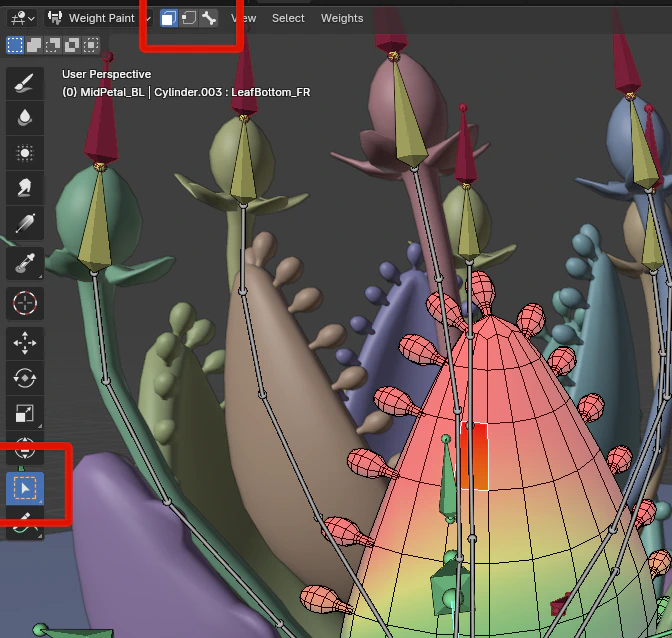
You can select specific faces/verts to be affected and then press CTRL+L to select all connected faces. You can also go into a mesh’s EDIT mode, select the faces, swtich to weight paint mode, then select the face icon highlighted.
I recommend working in phases! There will be a balance between making the armature bones, skinning/ weight painting them, and making test animations as you go along.
Time to Animate
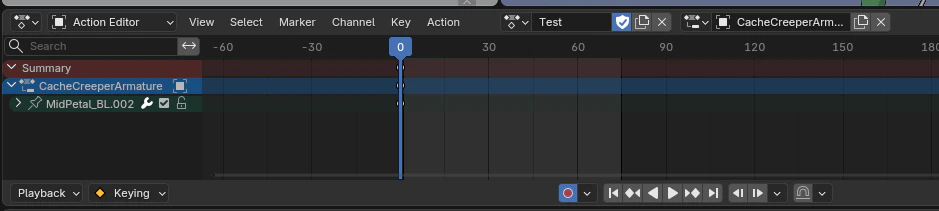
I = Insert KeyFrame
Auto-Keying option - The empty circle that turns red when On.
Pressing the X - Unlink action will not delete your animation! It will just close it and allow you to make a new anim without issue. You can go back to the animation you closed anytime by selecting it in the drop down.
Worth noting, make sure you are in pose mode when trying to switch actions! If you are in object more or edit mode, the actions will be “locked” to the last animation that was set while in pose mode. It may make you think all your actions are broken. It’s not, just be in pose mode. (figured that out the HARD way)
Personal tip! If you want to keep an animation/action always make sure that shield icon is on (blue)! That is setting it as a “fake user” = yes. Blender has this REALLY COOL feature where it tries to clean up/ delete anything that is in a file that is unused. Turns out a lot of times, actions aren’t automatically “used” in scenes. If you do not set fake user to true, there is a really really really high chance Blender will delete the animation when you close the program!
Inversely if there is an animation action you WANT to delete, but it seems to be referenced somewhere that won’t go away. (Or you don’t want to close and re-open blender to get rid of the unused stuff)
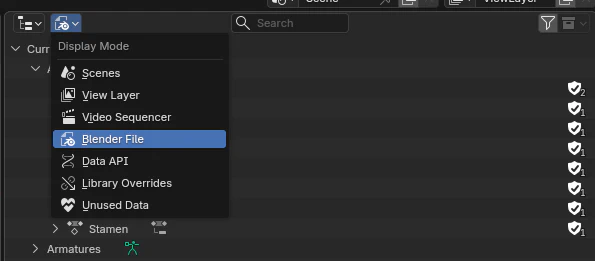
If you change Outliner display mode to “Blender File” in the actions menu you can manually delete anims out of there.
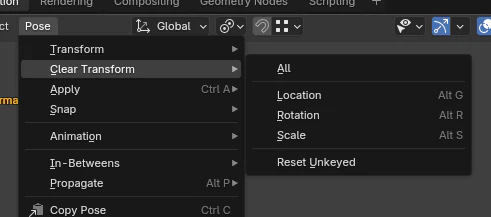
If you got your rig to a strange point and you want to return everything to their ‘default’ position just go:
Select the bones you want reset > Pose dropdown > Clear Transform > All
You could make a verbose control rig…. But we are a scrappy tiny indie team. Just animate the bones directly, it will be okay 👍
If you have a Control Bone – Make sure to turn off Deform in the Bone Properties Panel! This is important because control bones do not need to be exported to unreal.
Note: Right now there is some funky-ness with non-uniform scale on the Stamen meshes! (Scaling the core bones and some others seems to work okay.) It may have to do with scaling meshes with IKs. It looks fine in blender, but is eating itself in unreal. Just use caution there.
For Exporting > Import in Unreal Refer to [Blank]
Advanced Tutorials
Putting this at the very bottom because it’s probably NOT worth doing for our game’s scope! Do you want bendy tentacle things? That’s hard. Here’s a video for reference: https://www.youtube.com/watch?v=lBXFJA6UdaI I probably wouldn’t do it due to the amount of bones and complexity it needs.