VAT LOD workflow
Basically you need to manually build LODs with both UE and Blender.
Building the LOD assets
First, make a new folder in UE to store your intermediate files, probably in the same folder as the asset you are LODing.
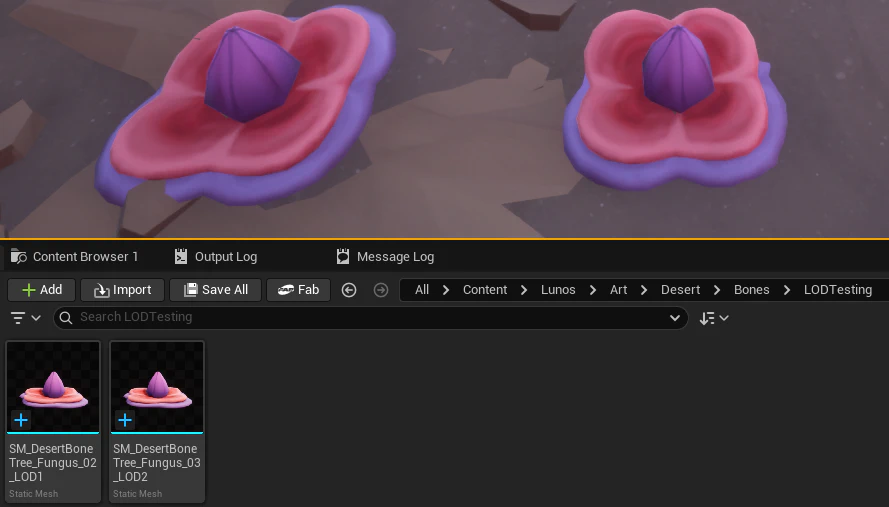
Duplicate your LOD0 mesh into that new folder for as many LODs as you need. A good starting point is an LOD1 at half the vertex count and an LOD2 at the lowest possible (distant viewing), but you can make as many as you need. Append their names with “_LOD1” and so on. Drag your newly copied meshes into the viewport.
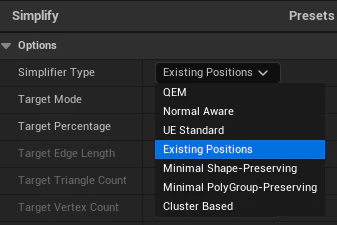
Simplifier Type, select “Existing positions”, then set your target percentage of simplification.
Remember to temporarily set up your material to auto animate by turning off
AnimationAlpha. This helps you determine if your VAT stuff looks on on the LOD version.
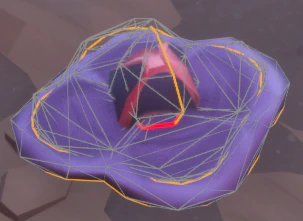
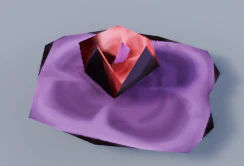
This 50 percent LOD1 looks ok - usually this one looks fine without much fuss. Hit accept when you are done.
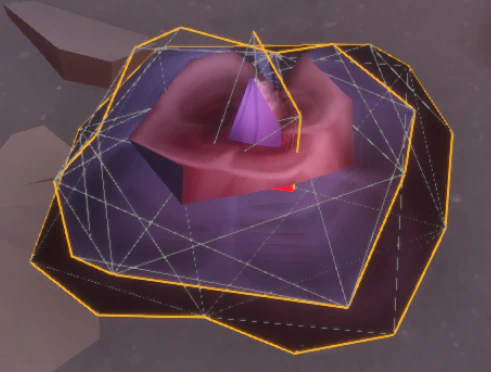
Next you need to export both assets into FBX files (annoying but necessary). You can select both, right click, asset actions > export.

Importing and updating the original mesh
Now you can reimport the exported fbxs as LODs for the original.

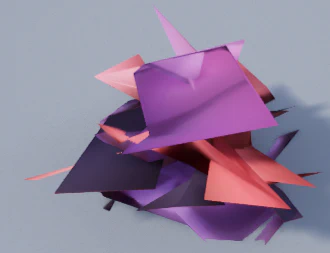
Now double click the original asset to open the static mesh editor. The LOD’s automatically setup with a different material slot, which is handy for swapping mats (useful later!). For now update the blank material with the original material instance.
Oh no, it’s still broken!
GenerateLightmapUVs and click ApplyChanges on ALL LODs. Don’t forget this step!
What about that janky shading?

bUseVATNormals.
LOD Distances

AutoComputeLODDistances
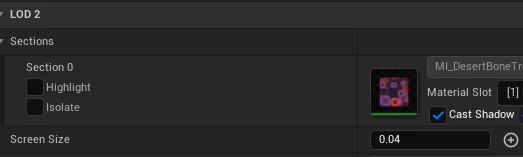
Current Screen Size display that shows a number. In my case it is .04 - I find that the last in the chain usually is somewhere around this number.
You can do the same for the other LODs, or just kinda find some midway point between 1 (LOD0) and your last LOD screensize. I went with 0.08 for my LOD1.
You can then preview it by switching the view to auto and zooming in and out. Ideally it should look fairly smooth!
Once you got everything in place you can delete your intermediate meshes.
The extra mile
You can perform manual edits on the LODs. In this asset’s case, we know the player won’t ever see the back of them at distance, so let’s go ahead and remove the back in blender.
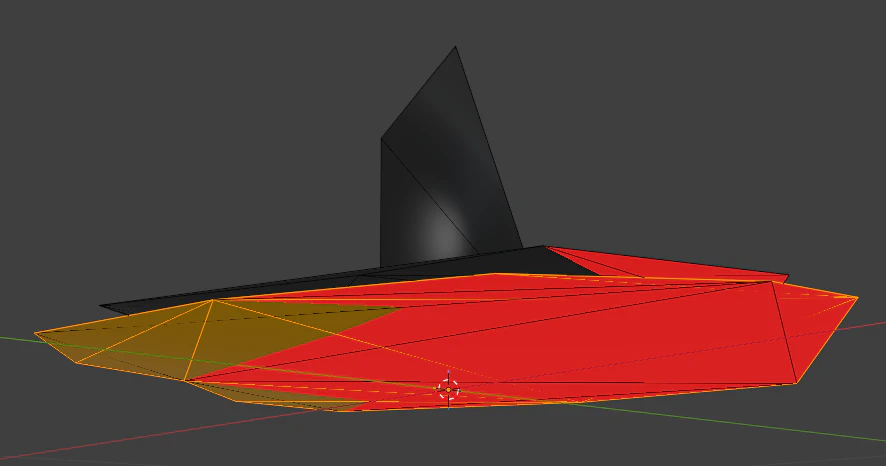
Do NOT move any of the verticies in blender! You can only remove them! This ensures the VAT texture continues to work as expected. If you do not need VAT after a certain LOD this doesn’t apply of course.
I removed the bottom of the mesh (easy to select via UV), exported it, then reimported back into UE. Went from 55 verts to 40. Nice.
Quad mesh billboard
The VAT technique largely works with quad mesh assets as well, with a few catches. Instead of “ExistingPositions”, use “QEM”. Remember to turn off lightmaps again when reimporting!
You can further optimize Quad mesh billboards manually to great effect. Since they are, you know, billboards, you can make your last LOD in the chain more or less just a small collection of planes.
Large detailed aggregate assets (Trees in summer) Quad billboard meshes