Foliage Mode Scan Plant SetUp
What if you are making a plant that you plan on painting around in foliage mode? Since we want errything scannable we have to do some custom stuff to set this up.
- Make a new folder, drag in / import your mesh and any textures it might need.
- Right click on the static mesh, select “Auto Setup Hero Plant”

- Set your options. I’ve created an animation texture so I set that as well (changes the material parent)

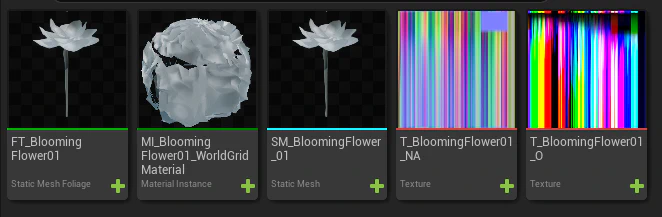
Assuming your assets are named correctly, this did a lot of the heavy lifting for you. Textures should be set to the correct compression settings, assigned to materials, etc. Unfortunately there are a few more steps I couldn’t automate, so let’s continue:
Note that if you actively don’t want the plant to be scannable or have any reactive animation, you are done! (drag foliage type
FT_PlantNameinto foliage mode outlier, start painting!) Otherwise, follow the steps below:
- Add collision to the static mesh. Typically for simple small scannables a sphere is the most appropriate choice - remember, this collision is not for the player but for overlaps and scan projectile collision
- Add a new blueprint class to the folder
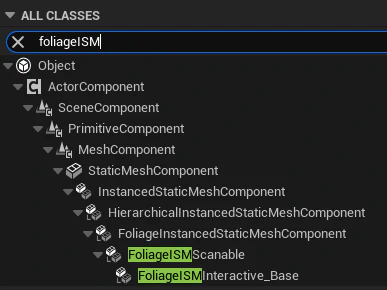
- For the parent class, there are 2 options to choose from. Search
FoliageISMand you’ll see scannable and interactive. If all you need is scan choose scan, otherwise choose interactable.
- Name this asset
Foliage_PlantName- In the newly created foliage component asset you made, go to class defaults and set the scan tag (usually should just be “PlantName”)
- For the parent class, there are 2 options to choose from. Search
- Now, in the automatically created Foliage Type
FT_PlantName, you’ll need to set the component class to be the class you just made.
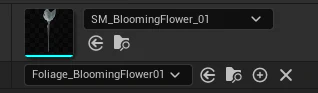
- You will also need to set the collision settings in the foliage type:

- You can also setup some rendering things here, like cast shadow and culling distances, as well as foliage placement rules (align to normal etc)
- You will also need to set the collision settings in the foliage type:
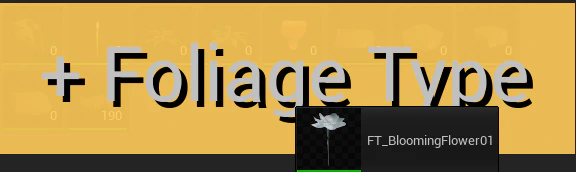
- You are almost ready to go! Time to drag the FoliageType
FT\PlantNameinto the foliage mode outlier. It’s painting time!
- Foliage automagically assigns itself to whatever streaming level the surface actor is , so in theory we shouldn’t have to worry about where foliage lives. Time will tell…
NOTE that the scan data entry tool doesn’t work with foliage mode placed scannables, so we’ll have to enter in the scan data manually in the DT or make a fake scan component for it to read. I may figure out how to do this better later.
- For interactive plants, the created FoliageComponent class is where the interactive code should live. Simple example is overwriting “FoliageInstanceOverlapped”
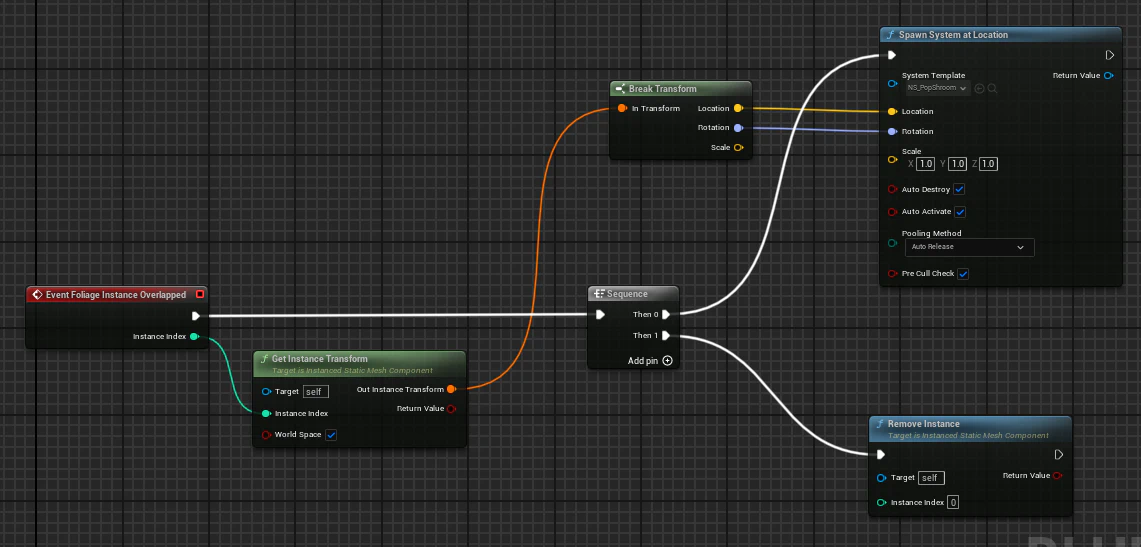
- This is what the pop shrooms do - gets the instance location, spawns the poof particle, and removes the instance. EZ.
- Currently the overlap is a bit buggy, I have it on my todo list to swap how it works under the hood but this code will remain
Global effects (Time of day, wind, etc) don’t need any setup here and are instead handled in the material instance. Take a look at the
VATGlobalListenParameterto swap between types. If we need the plant to do something on the CPU (make a sound or whatever) we’ll still need the BP code (Not actually sure how we want to handle sounds… hmm)