When to use?
What about skeletal / armature based assets? First, consider if you need one:
- Complex physics interaction
- Low instance count (few on screen)
- Ease of rigging
- Complex animations / interactions There are two kinds of skeletal plants - physics only and animation asset based. Technically you can do both but I’ll focus on physics first.
Physics based
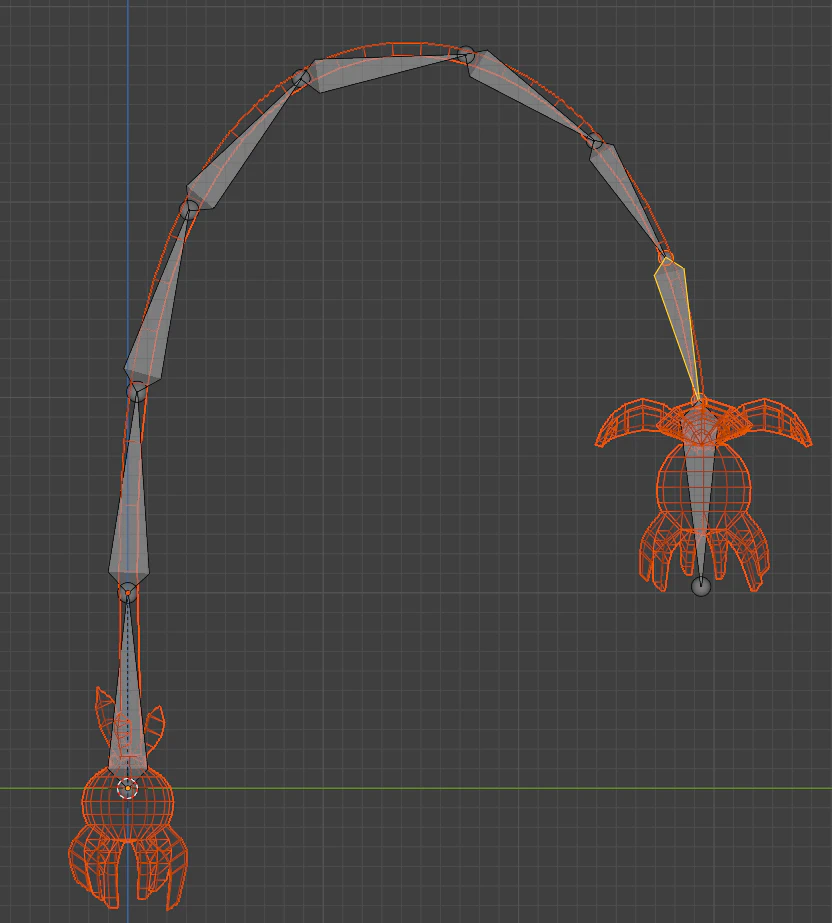
- You can try smoothing / blurring the weights on the bones to go for a softer look, generally nice for plants
With the armature and mesh selected, export as FBX. Use the prefix “SKM” for skeletal assets (SKM_PlantName)
Import
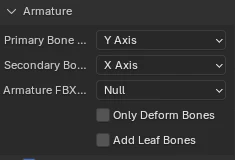
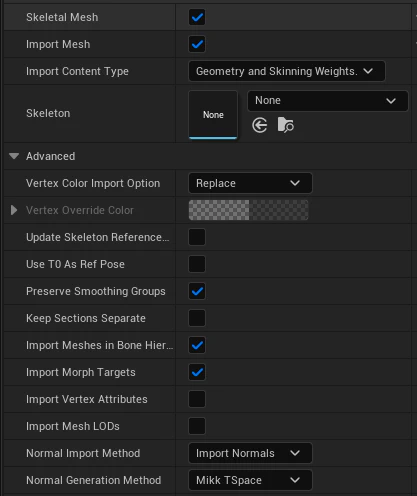
- Make sure you are importing normals (especially if you are doing custom normal stuff!)
NOTE: This assumes a physics only mesh - no animations are imported. If you need animations, these should also import but it can be a lot more finicky.
You’ll end up with 3 assets - a Skeletal Mesh, Skeleton, and Physics asset.
Right click on the Skeletal mesh, select “Auto Setup Hero Plant”
NOTE this is kinda untested - I think it should work for skeletal? You may have to manually set up your materials / textures.
While technically supported, I doubt you’ll want to use VATs with skeletal. Wind anim stuff is supported but keep in mind it is a disconnect from the skeletal animation physics wise, so subtle is probably better.
Physics Asset
OK, time to add physics / collision. Double click the Physics Asset in the content browser.
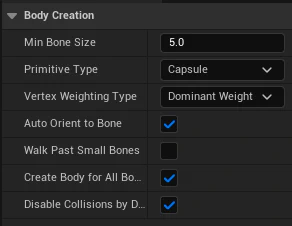
- Make sure there is a body created for every bone you want to simulate
- The vaules above are usually a good starting point.
- Try to keep the primitive type limited to capsules or spheres as they are SIGNIFICANTLY cheaper to simulate.
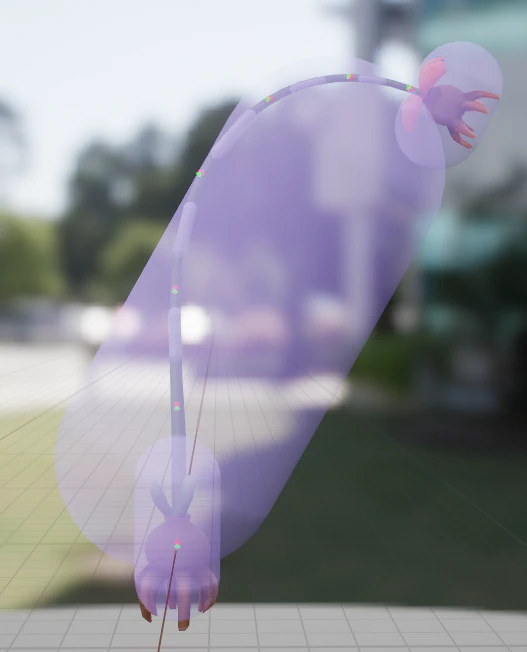
- You can click and delete the big one lol
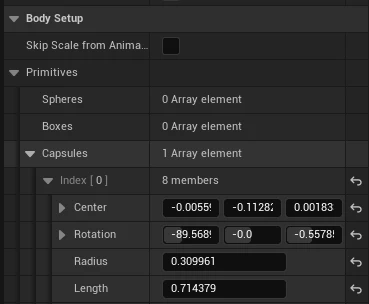
- Bit of manual tweaking gets us here. Doesn’t have to be perfect, just kinda close. Don’t worry about the bodies clipping, we are going to turn off collision between them.
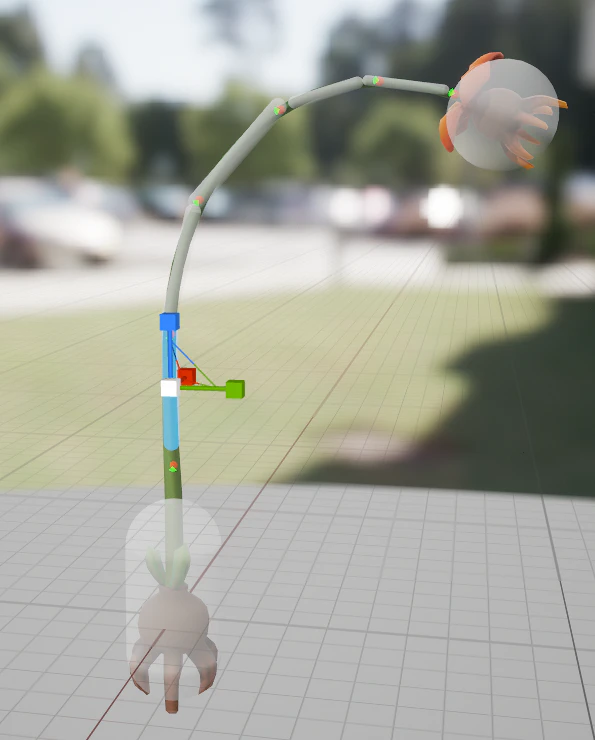
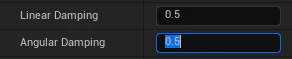
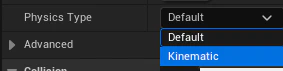
You can also try disabling gravity - this often looks better for floatier plants that just need to snap back to their original pose.
Physics Constraints
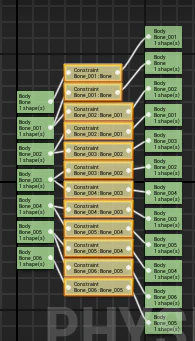
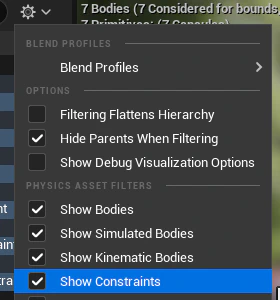
- Disable collision here. This only disables collision between joints, not with the world.
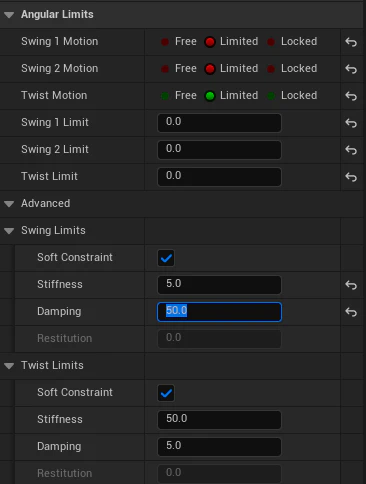
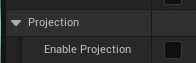
OK, now you can test the physics in the editor. Click Simulate at the top, the hold CTRL and right click to drag around the actor to see how physics works. Once it is kinda close, go ahead to the next step to get it in game world as it may react a bit different there!
There are tons of ways to tweak all this - experiment!
BP setup
You’ll need to setup a hero plant BP to get physics working properly for testing, so lets set that up. This is similar to the static mesh plants but uses a different parent: BP_HeroPlant_Skeletal_Physics

BP_HeroPlant_Skeletal_Physics
- Name this asset “BP_PlantName”
Open the asset, select the “SkeletalMesh” component in the Components panel on the left.

Now click on the “ScanComponent” component in the components panel.
- In the details panel, set the “Tag” variable. This is the scan tag for the plant, usually just “PlantName”. These must be unique per scan (variants excluded
- If this is a variant (same species / scan, different type), set the “Varient” integer
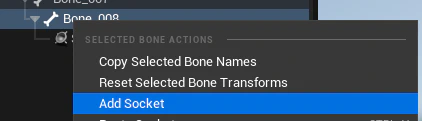
REMINDER: If you need the scan target to move (like if the scan location is the end of a plant that has physics or animates) you can add a socket named “Scan” to the skeleton asset
PROTIP: if you are making a variant of a plant you have already setup, it is easier to simply make your variant a child of the original plant. If you right click your original BP there is an option to “Create child blueprint class”, then swap your mesh / scan variant ID. This will be especially useful if the plant has any code.
Test
OK, finally it is time to test your asset. Place one in the level and bump into it, and see what happens! You can shoot it and throw things at it as well to test physics
- By default, the player is NOT blocked by the asset, but the asset reacts to the player. This is likely the expected result - physics plants always move out of the way for the player and never block them. Physics get real weird when a colliding pawn tries to stand on them. Should you need real player collision, we can custom set something up.
- Physics actors start “asleep” by default as an optimization - they need stimulus to awaken.
Animation Asset based
TODO! Waiting on rigging documentation from Taylor