Let’s animate something inside Unreal, the basic / static mesh way.
Example
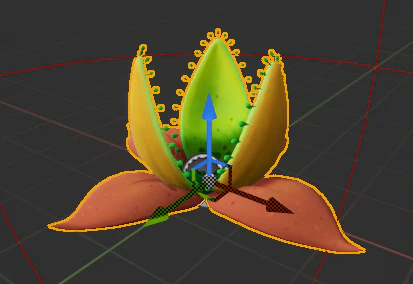
BP_HeroPlant using the cache creeper static mesh. Refer to the “Blueprint” page for help doing that.
NOTE: I did not start with the OG cache creeper to keep this simple. This is only an example on how to animate in BP, not a production example.
First, we need an event to start off the animation so we can see it in editor. Hero plants have a rudimentary “stimulus system”, so let’s use that.
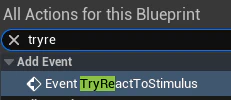
In the event graph, add a TryReactToStimulus event by right clicking and typing the name.
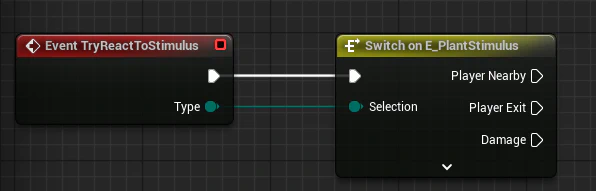
Pull off from the green “type” dot and type switch to add a switch dude.
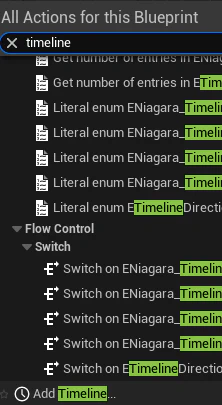
add timeline... option. This is your guy for doing one shot animations. Give it a name, then connect it up to one of the stimulus choices (I’m doing Physical Touch, which triggers when shot by the slingshot)
Timeline
This guy is the closest thing you’ll get to a traditional animation tool. Double click the timeline node to enter the editor.
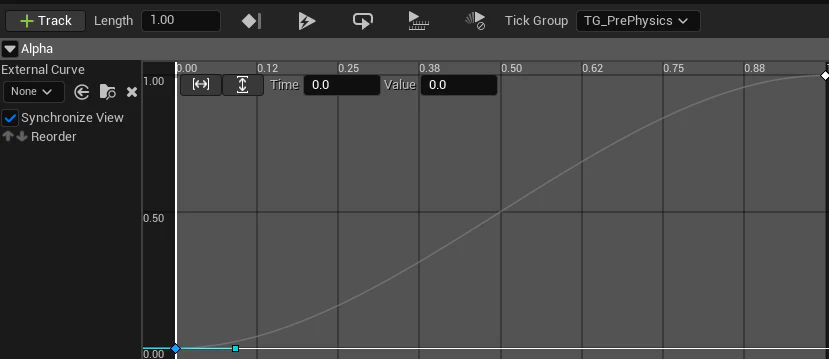
shift left click on the timeline to add keyframes. Make sure to change the total length of the track accordingly as well. You can change the interpolation type of each keyframe by right clicking on them.
NOTE: Timelines do not directly reference assets or materials or anything, they just drive values based on curves. You assign what those values do back in the event graph
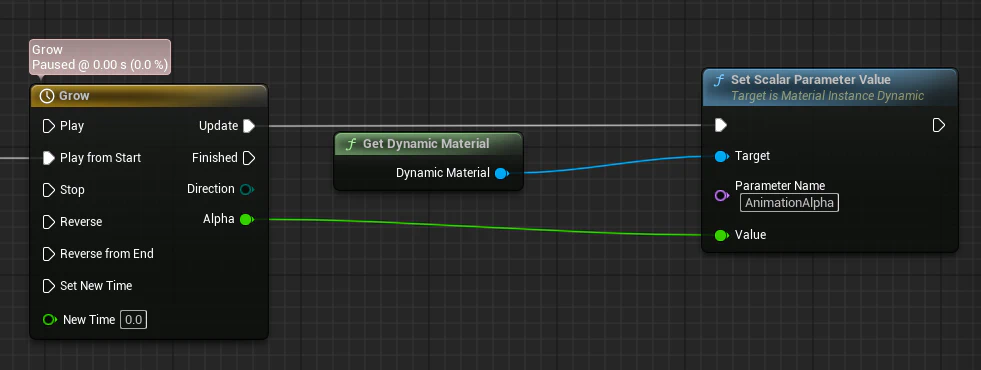
After authoring your curves, head back to the event graph. Using the same right click type method as before, add Get Dynamic Material, then pull off of the blue dot and type Set Scalar Parameter Value. Type “AnimationAlpha” into the parameter name. Your graph should look like this:
NOTE:
Get Dynamic Materialis a custom getter function in the hero plant class. In other classes you’ll have toCreate Dynamic Material Instancefrom the static mesh component before you do your anim, or use custom primitive data if it is setup in the material.
Alright, now give it a play and shoot it! Your plant should animate.
Adding more
You can add as much functionality as you like to the timeline. Let’s make the plant change color.
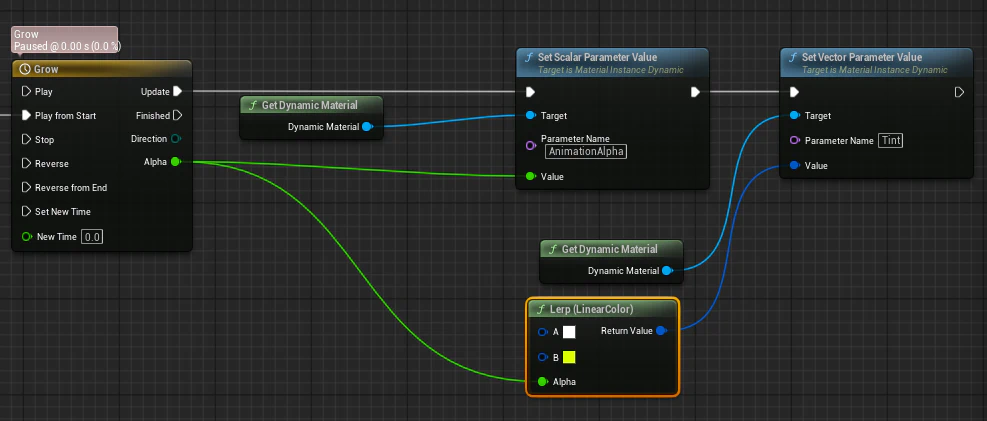
SetVectorParameterValue. I pulled off of the blue “value”, typed “lerp” to create the node, then set the colors by clicking on the boxes.
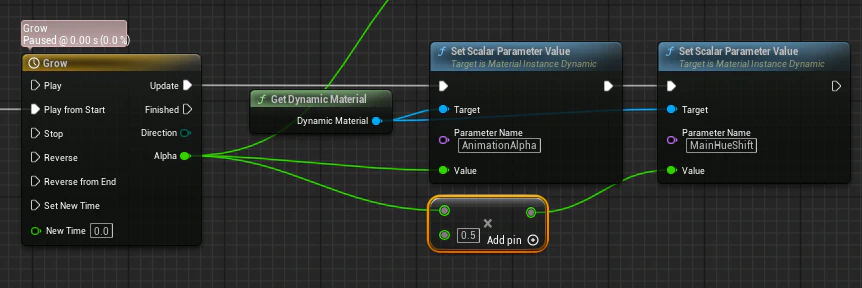
I could also do this with hue - it is a float parameter where zero to one represents a full rotation on the hue circle, so let’s modify the incoming alpha:
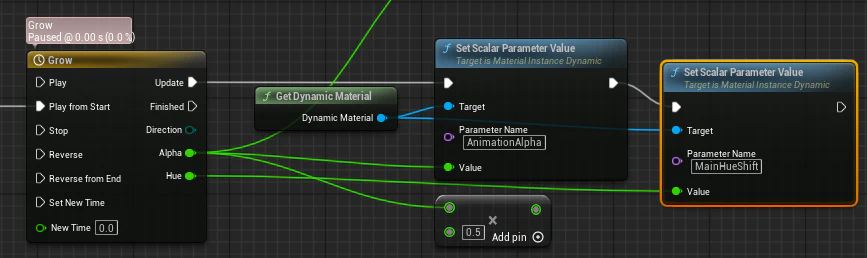
More than materials
You can animate ANY values here, not just materials. It’s programming, yo.
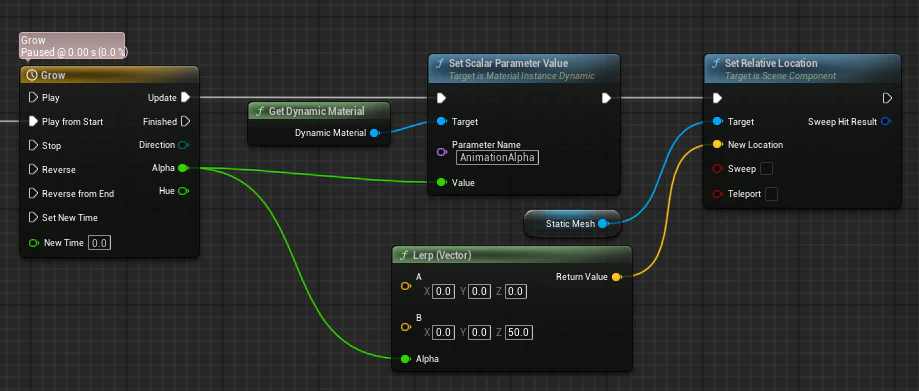
SetRelativeLocation node and set it to interpolate between 0,0,0 and 0,0,50 (raising it up fifty cm over the original alpha curve.)
Sky is the limit. Any animations authored in this way have a limited ability to transfer to other assets via copying the timeline and reconfiguring it to fit the new asset. Complex logic can always be fit in as well - depending on the goals it can be easier to move to a tick or timer base approach, but timelines are great for one off animations of values.