Background plants should be very simple, like a single color gradient.
Setting up multiple materials per biome
I’ve created some helper scripts to speed up this process.
First, create and setup your asset/s according to any particular biome, usually spring. Make the material instance, setup LODs on the meshes, etc. It is easier if all of this is done in advance.
Make sure your material instance is named MI_PlantName - this will be used as the basis to create the other material names.
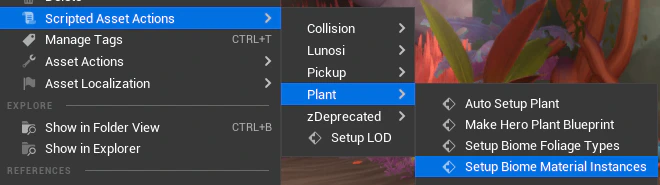
Right click on your fully setup material instance -> Scripted asset action -> Plant -> Setup Biome Material Instances
There will be a dialog box asking what biome the material you selected is - this makes sure the script knows which is the original for naming purposes.
The script will run and create 4 material instances, named per biome. The original one you chose is the parent of the others, IE anything you change on it will change on the others.
The idea here is you can change settings on the newly created children IE tint, hue, new texture, new material parent, whatever you want. Swapping textures (gradients) is usually the best here.
From here, if you are working with regular ole static mesh actors, you can override the materials on the placed instances in level. You’ll have to do this on all the actors (can select all) and any future actors of course. This annoyance is worth the flexibility and familiarity of current workflows.
Impostors / Billboards
Larger aggregate / complex foliage, especially ivy, does not auto LOD particularly well and will likely have a significant instance count / coverage on screen. Fortunately, imposters / billboards work exceptionally well for these assets.
First, make sure your asset has it’s final look setup. The imposter baker will bake this look, so get it close.
Give the asset a few traditional auto LODs, usually one or 2 (IE number of LODs = 2 or 3). Double check to see if it looks ok - I’ve found with my usual method of making simple geo based background foliage they will crunch down a bit and look ok but they can’t get too low, so having a few lods in the chain before the imposter should help.
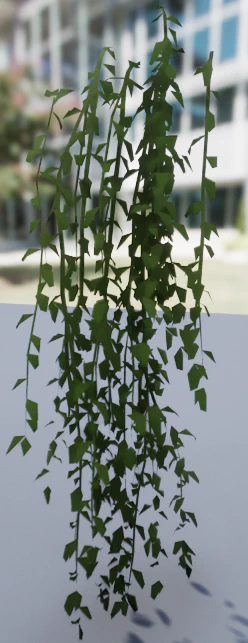
Make sure your LODs are setup before baking!
Right click your asset > scripted asset action > Imposter Baker > Launch Imposter Editor
I’ve created a preset that should work for most foliage assets:
DA_LunosBackgroundFoliage. Set it in theSettings Presetdropdown and clickLoad Settings
There are tons of settings here, but I’ll post some finding I’ve made:
- You get significantly more res out of traditional billboards vs imposters, so if at all possible start there.
- Make sure resolution is set to a power of 2. 1024 seems to generally be a good sweet spot for traditional billboards.
- You must bake a normal map even if you are not using any tangent space normal maps on your asset. The normal map is used to mimic the shading on the imposter / billboard and doesn’t work without it.
- The previewer is really dark - check your asset in the base color view to actually look at the silhouette.
- You have to “render imposter” to get the preview to update for the first time.
- I’ve made duplicates of the base imposter materials so we can make edits as we go. This will be very useful for quickly making biome variants.
The editor is a bit slow for sure. Kinda sucks but it what ya get I guess. Do NOT drag any values as it take FOREVER to go.
Once you are done, make sure your content browser is focused on the folder your mesh is in, then click the “Create Assets and Save To Mesh” button. It should make a new folder called “ImposterLODs” that houses your new imposter files. It also automatically assigns the imposter mesh to your original mesh file as the final LOD in the chain (hence adding additional LODs first!)
Do NOT try to add lods at this point! If you messed up, I think you’ll need to remove all LODs and do the whole thing again.
Creating biome variants for billboards
If you are using an asset that has biome variants AND a billboard, the billboard also needs to be tweaked per biome to match. You can use the same Setup Biome Material Instances script on the billboard instance.
The default material has 2 parameters to tweak - Hue and tint. We can add more if needed.
If the biome specific version looks significantly different you’ll have to bake a brand new set of imposter textures for it. Pain, but not impossible.
Creating foliage types for biome variants
First, make sure you have already created biome material instances for you mesh (and billboard / imposters as well!).
Next, manually create a foliage type for you asset if you haven’t already done so. This will serve as the basis for the others, so set it up how you would like (lighting stuff, culling distance, whatever). This is usually done by dragging the mesh into the foliage tool. Name it FT_PlantName.
You can put the FTs into a different subfolder - might help for organization
Finally, right click the asset -> Scripted asset action -> Plant -> Setup Biome Foliage Types
This basically does the same thing as the material instance one, but it tries to automatically assign the biome material to the corresponding FT.
NOTE This attempts to find ALL materials, so it should work for both regular and imposter mats IF THEY WERE ALREADY SETUP. It is imperative that you do all this work in order!
I’d like to come up with a better way to place wall assets like vines - they don’t really align well and are easier to place as individual meshes.